1tm AI Product Info drafts product details inside Shopify. It uses your product images, existing information and relevant web sources to suggest changes you can review before applying. Automatic apply is off by default.
Use images and reference material that your business owns, licenses or is otherwise authorized to use.
Screenshots were captured in our development store on September 3, 2026. They show the workflow with a sample product, not verified product facts. Some help text may differ between versions. Click an image to open the full-size version in a new tab.
Install and open the app
Install 1tm AI Product Info through Shopify, confirm the requested access, then open Shopify admin → Apps → 1tm AI Product Info. Open the app from Shopify so it can identify your store.
On Home or Billing, choose Choose a plan and review the plan in Shopify. An active subscription is required to start analyses. Payment is handled through Shopify; you do not need a separate account or Google API key.
The app contains Home, Products, Billing, Settings and Product feature setup. You can start with the Products page without adding any blocks to your store.
Try your first product safely
Use a draft product you control before working on a live product.
- In Shopify Products, create or open your own product with Draft status. Add an accurate title, any facts you already know and a clear photo if available. Keep a copy of any text you may want to restore.
- In the app's Settings, leave Automatically apply high-confidence changes off and click Save. Choose your writing style and output languages there if needed.
- Open the draft product in Shopify. Choose More actions → Enhance with AI. Select Style and Language; use Highlight (optional) only for an emphasis supported by your product facts. Click Start.
- Wait for the result. Results often begin appearing after one or two minutes, but a run can take longer. You can also check progress in the app's Products page.
- In Review Suggestions, compare current and proposed values. Click None, then select one useful suggestion for an empty field, such as a missing description, or select a product feature. Leave Overwrite existing values off.
- Click the Apply button, whose label shows the number of selected fields or features. Reopen the product to check the saved value. Find saved features under Content → Metaobjects → Product Feature and in the product's Product features metafield.
The product stays a draft. The app does not publish products or change their status. When you later apply changes to an active product, the changed product content can be visible to shoppers immediately.
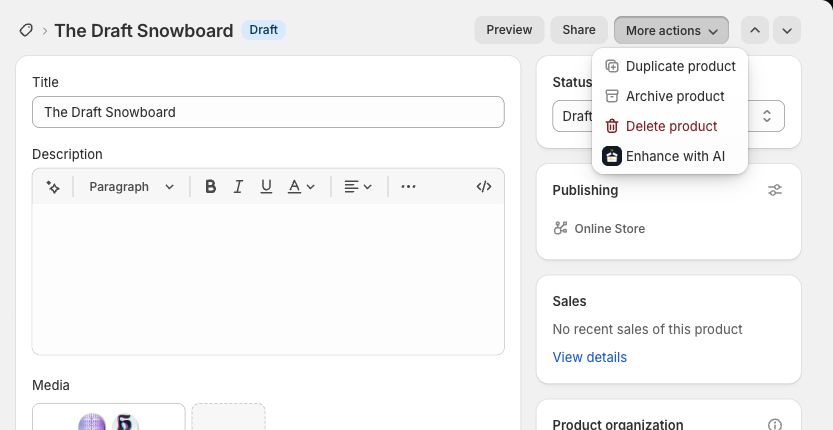
Open More actions on the product and choose Enhance with AI.
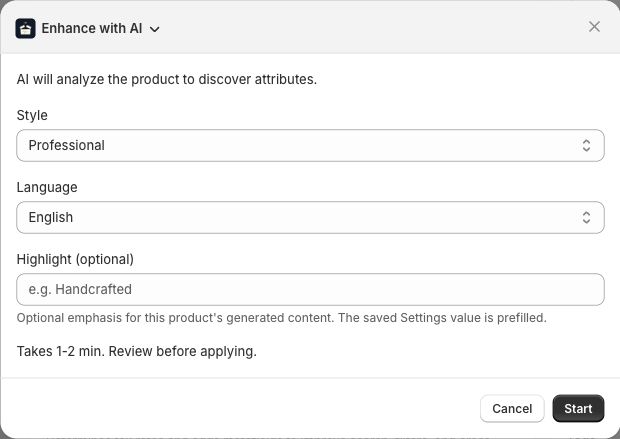
Check the style and language, optionally add a supported product highlight, then choose Start.
If the action opens an existing review instead of the configuration form, choose Re-analyze to start a new run. Starting a new completed analysis counts toward usage, even for the same product.
Choose where to start an analysis
| Starting point | What happens |
|---|---|
| Shopify product → More actions → Enhance with AI | Choose style, one language and an optional highlight. A recent result may open directly for review. |
| App → Products → Analyze | Start from the app using your saved settings. Use Review when a result is ready. |
| Optional AI Enrichment block → Enhance with AI | Start immediately using saved settings, without a configuration dialog. |
| Shopify product list → select products → More actions → AI Enhance Selected | Choose style and one language, then queue up to 50 products. The action may appear under Apps in Shopify's menu. |
| App → Products → select products → Analyze N products | Queue up to 50 products using saved style and output languages. |
To add the optional admin block, open a product in Shopify, find the Blocks area and add AI Product Enrichment. Its AI Enrichment panel shows analysis status and offers Enhance with AI, Review or Re-analyze as appropriate. This is an admin panel, not a block displayed to shoppers.
For a batch, a successful start means the jobs were queued. Open App → Products to monitor them and review each product. There is no single approval action for an entire batch. If a quota or start error interrupts the batch, check which products started before trying again. Your optional automatic-apply setting also applies to batch analyses.
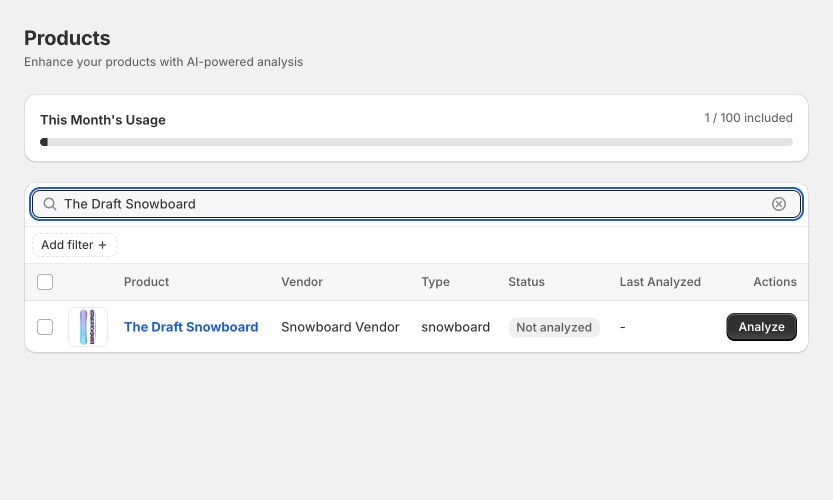
Find the product with Search products and choose Analyze. Use the checkbox on the left when selecting products for a batch.
Give the analysis useful evidence
The app reads the product's title, description, vendor, product type and tags. It also uses the assigned Shopify category, available category fields, options, variant details and product features previously saved by the app.
Put the most informative photos among the first five product images, which are the images used for analysis. Show the actual product, packaging or labels clearly. A photo can help identify visible details; it cannot establish facts such as an unprinted safety rating or a hidden material composition.
A product can be analyzed without an image or barcode. For a digital product, for example, its description and supplied specifications may provide the useful evidence.
Set the Shopify category accurately before analyzing. It gives the model useful context, but choosing a category does not fill every possible attribute. Additional relevant features may be suggested when there is evidence for them. The app has no merchant editor for defining a custom analysis schema or requesting every attribute in a category.
Some input collections are limited. The app reads up to 50 variants, 30 Shopify category metafields and 100 previously linked product features. Other custom metafields are not automatically imported. Review any notes about incomplete context, and include essential facts in the product information the app can read.
Different products need different facts
| Product | Useful information to supply and check |
|---|---|
| Apparel and home goods | Composition, care instructions, dimensions, and which colors or sizes belong to variants. |
| Technical products and spare parts | Exact model, measured dimensions, specification sheet and documented compatibility. Appearance alone does not establish a rating or fit. |
| Food and consumables | Ingredient list, declared allergens, nutrition data and whether a quantity is net content or package weight. Verify these against the label or supplier record. |
| Digital products and services | File format, deliverables, access conditions and any stated license terms. Physical material or weight may be irrelevant. |
| Handmade or unbranded products | Your own materials, measurements and description. A missing barcode is valid when no identifier exists. |
Unknown, conflicting or inapplicable values can be omitted. A result without a material, weight, barcode or additional feature is not necessarily a failed analysis. Check claims about safety, certification, allergens and compatibility against authoritative product documentation before publishing.
Products with variants
Suggestions apply to the shared product. Variant options help the model distinguish information, but the app does not write separate descriptions or features to individual variants. A red option must not become a claim that every variant is red.
The app does not change variant options, SKUs, barcodes, prices, inventory or shipping weight. For a product with multiple variants, do not treat a suggested shared feature as proof that it applies to every variant. Notes identify limited or ambiguous variant context where available.
Review confidence, sources and missing values
Review shows current values beside suggestions. High-confidence suggestions may be preselected; you can change the selection or use All and None. Read each selected value before applying it.
The default confidence bands are:
| Display | Model confidence |
|---|---|
| Green | At least 85% |
| Yellow | At least 70%, below 85% |
| Red | Below 70% |
| Not assessed | No confidence value was supplied |
Settings controls these thresholds. Confidence is the model's estimate, not measured accuracy or a guarantee that a statement is correct. A missing score is different from a reported score of 0%.
Source information and links appear when available. Some suggestions come from supplied product information or images; others may use web research. Not every field has a source URL, and a URL does not remove the need to check that the page describes the exact product or variant.
Read Check these details in the app's review. It can explain conflicting attributes or limited category and variant context. For a feature's current value, an empty value means none was found. Not loaded means the existing value could not be retrieved; reopen Review before deciding to replace it.
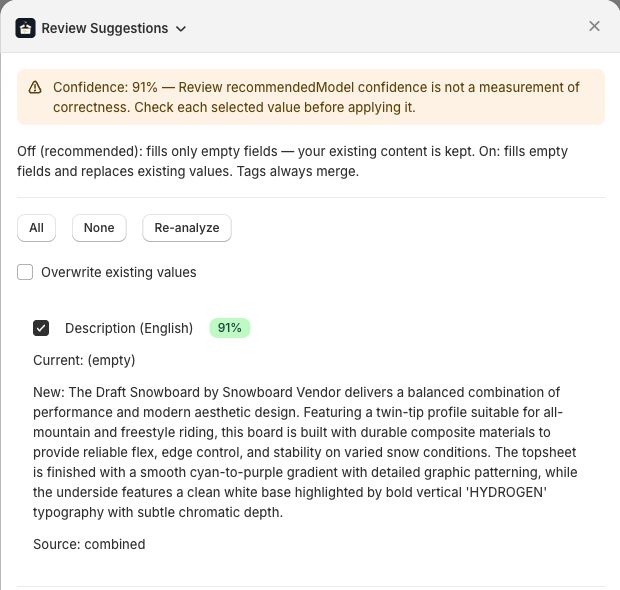
Compare Current and New. Choose None to clear the initial selection, then select only the suggestions you want. The sample statements shown here still need factual review before publication.
Apply selected suggestions
The default is to fill gaps. With Overwrite existing values off, existing titles, descriptions, vendors, product types and different feature values are preserved. Existing translated descriptions are protected too. Tags are merged with existing tags.
Turn Overwrite existing values on only when you want the selected suggestions to replace existing content. It applies to the selected fields, descriptions and features, not the entire product. Tags continue to merge. A feature whose value has not changed may have its supporting evidence refreshed without replacing the value.
| Content | Where it is saved |
|---|---|
| Title, primary-language description, vendor, product type, tags | Shopify's native product fields |
| Descriptions in other supported, published languages | Shopify product translations |
| Product features | Product Feature metaobject entries, linked through the product's Product features metafield |
| Analysis information | Product metafields containing analysis time, applied fields and available confidence or sources |
| A supported GTIN suggestion, when present | A suggested identifier metafield; it does not update a variant barcode |
Product type is Shopify's free-text type field. Applying a suggestion does not assign or change Shopify's product category. The app also does not write SEO title or description fields, alter images, configure filters, or provide digital download delivery.
After Apply, check the product and any messages in the app. A protected existing value may be skipped. If Shopify reports an error during saving, earlier parts of the operation may already have succeeded. Inspect the product before retrying the remaining changes.

Check the count on Apply before saving. Here, None was used and only the English description was selected, with no additional features. This screenshot shows the state before applying.
Store and display product features
Features hold a label, value and optional unit, confidence and source. Where available, their structured values preserve numbers, booleans, lists and objects, so that details such as a list of ingredients do not have to be reduced to one unstructured sentence.
The app prepares the required feature storage when you apply selected features. You can also open Product feature setup and choose Set up product features or Update product feature storage. Updates add missing fields while keeping existing entries and merchant fields. If that page reports incompatible storage, contact support before deleting or changing a definition.
Find saved entries at Shopify Content → Metaobjects → Product Feature. On the product, Product features links the relevant entries. Reanalysis uses a stable attribute identity to reuse the matching feature where possible. Deselecting a feature does not delete a previously saved one.
Show features on the storefront
Saving a feature does not automatically add a specification table to your theme.
- Apply the selected features and verify the product's Product features links.
- Open your theme's product template in the theme editor and check whether an appropriate section can use those entries through a dynamic source.
- If your theme cannot display the linked list, ask your theme developer to render the linked entries and their label, value and unit. The product reference is
ki_produktinfo.features. - Preview a product with saved features and another without them before publishing the theme change.
Compatibility depends on the theme and its settings. Shopify explains these connections in its dynamic sources documentation. The app does not install a storefront section or automatically configure Shopify Search & Discovery filters. Filtering may require separate compatible fields and theme configuration.
Languages and writing settings
Generated output supports English, German, French, Spanish, Italian, Dutch and Portuguese. The app interface is in English.
Under Settings → Output Languages, choose the supported languages your store publishes and save your selection. The single-product action and Shopify bulk action let you choose one language for that run and initially use the supported primary shop language. Analyses started from the app's Products page use your saved choices. Check the selection rather than assuming every published language will be generated.
For descriptions, the primary language goes into the product's main description. Other published languages go into Shopify translations. You can select only secondary languages when you want translations without a new primary-language description. Review and select each description you want to apply.
Multilingual saving currently covers descriptions. Titles, tags and feature labels or text values use one output language; they are not separately translated into every selected language. Regional variants of the same language are not generated as independent translations. If the store's language is unsupported or its language configuration cannot be read, the app can fall back to English. Check the language shown before starting and again before applying.
Writing Style offers Professional, Casual, Technical and Marketing. Product Highlight adds an optional emphasis to generated content. Use a factual highlight, such as a documented material or use case. A style or highlight does not establish an unsupported product claim.
Click Save to keep settings. Discard abandons unsaved changes; Reset to defaults restores app preferences and does not undo product changes. Generating multiple descriptions within one analysis still counts as one analysis.
Optional automatic apply
Automatic apply is off by default. To enable it, open Settings, select Automatically apply high-confidence changes, set an appropriate Auto-apply threshold and click Save.
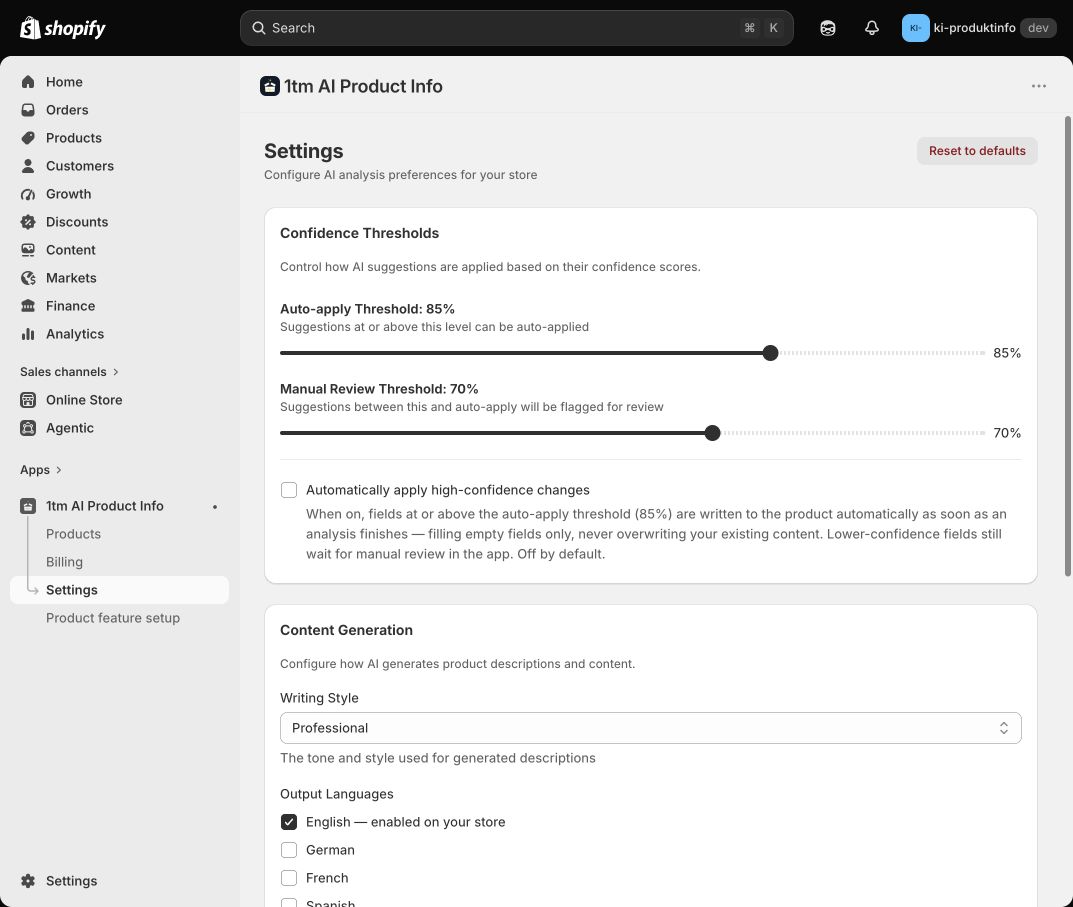
Keep Automatically apply high-confidence changes off for your first test. Setting a threshold alone does not enable automatic apply.
When the app loads a completed analysis, eligible suggestions at or above that threshold can be applied without another approval. This fills empty fields, preserves different existing feature values and merges tags. Suggestions without confidence are not automatically applied. The setting affects individual and batch analyses.
Automatic apply currently selects only the first description language that meets the threshold. Review the other descriptions yourself. Lower-confidence suggestions and any failed automatic save remain for manual review. Check actual saved values in Products; an analysis marked complete does not mean every suggestion was written.
The Manual review threshold controls the confidence bands and must be lower than the Auto-apply threshold. Changing either threshold does not make the model's claims more reliable. Begin with manual review on representative products before enabling unattended changes.
Pricing, counting and limits
The Standard plan is US$19 per 30-day subscription period. The app includes 100 completed analyses per UTC calendar month, then US$0.10 per additional completed analysis. The usage calendar can differ from Shopify's subscription period. Check the terms presented by Shopify when choosing a plan; Shopify's approved subscription and billing records are authoritative.
| Action or outcome | Counts toward analysis usage? |
|---|---|
| A successfully completed analysis with a nonempty result | Yes, once for that run, even if you apply no suggestions |
| Re-analyzing the same product | Yes, if the new run completes with a nonempty result |
| Generating several description languages in one run | One analysis for that run |
| Opening a cached review, checking status or applying its suggestions | No additional analysis |
| A failed analysis or a result rejected as empty | No completed-analysis count |
| A batch | Each completed product analysis counts separately |
Billing shows recorded usage, estimated charges and remaining capacity. The app counts usage by calendar month in UTC, resetting at 00:00 UTC on the first day of each month. This counter is separate from the recurring subscription period shown by Shopify.
The app also checks a monthly additional-usage limit before starting analyses. Its default is US$50 in additional usage, separate from the base subscription; use Billing to see the limit recorded for your store. This is a start limit, not a reservation for jobs already running or a guarantee of a final invoice total. If you reach it, contact support about the limit or wait for the next usage month. A batch may start only some selected products when capacity runs out.
Manage the subscription through Shopify. Uninstalling or cancelling does not reverse charges already recorded. The app does not need your payment card details.
Undo changes or uninstall
There is no Undo button or saved before-and-after version history in the app. Keep a copy of content you plan to replace, or test on a draft first. To reverse an applied change, edit the affected product field, translation or Product Feature entry in Shopify. Remove unwanted tags explicitly; reapplying suggestions does not replace the whole tag list.
Uninstalling the app does not restore old product text or delete approved features and metadata from your store. Remove or edit that content separately if needed. Check any theme connections before removing linked features.
AI marking and privacy
Titles and descriptions written by the app receive machine-readable AI-origin information. Descriptions include an invisible marker; title marking is stored in product metadata. This does not add a visible badge for shoppers or replace your own review of the content.
If you later replace generated text entirely with your own writing, review its AI-origin metadata too. The app does not detect manual rewrites or automatically remove old marking.
Analysis sends product images and information to Google Gemini and, when used, the service's research providers. The app also stores the settings, job and usage information needed to operate. It does not request Shopify customer or order access. Do not put customer information into product text or highlights.
See the privacy policy for processing, retention and deletion details.
Troubleshooting and support
| What you see | What to do |
|---|---|
| Subscription required or Analyze unavailable | Open Billing and choose a plan. If you already approved one, reopen the app in the correct Shopify store and check its subscription status. |
| Processing takes longer than expected | Check Products before starting again. Closing a dialog or reaching its wait limit does not necessarily cancel a background analysis. |
| No result or an empty-result error | Check the product title, readable images and supplied facts. Improve the evidence before retrying. |
| Review data has expired | Results are kept for about one hour. Re-analyze for a new result; a new completed run counts again. |
| No additional features | The result may contain no supported additional facts, or no features were selected. Missing features do not by themselves mean setup failed. |
| An existing value stayed unchanged | Check Overwrite existing values. With it off, different existing content is preserved. |
| A feature's current value says Not loaded | Reopen Review. If it persists, contact support; do not assume the stored value is empty. |
| Feature storage needs attention or a save failed | Read the error in Product feature setup or Products. Check for partially saved changes. Contact support before deleting definitions or retrying a replacement. |
| A saved feature is absent from the storefront | Verify its product link, then check the theme connection. Storage alone does not create a visible section. |
| The language is unexpected | Check Shopify's published languages, Settings → Output Languages and the per-run Language selection. |
| Monthly usage cap reached | Check Billing and any products already processing. Contact support if you need a different limit. |
Email contact@1tm.solutions with your shop domain, the affected product's admin link, the approximate time and the exact error. A screenshot can help. Do not send API keys or access tokens.